
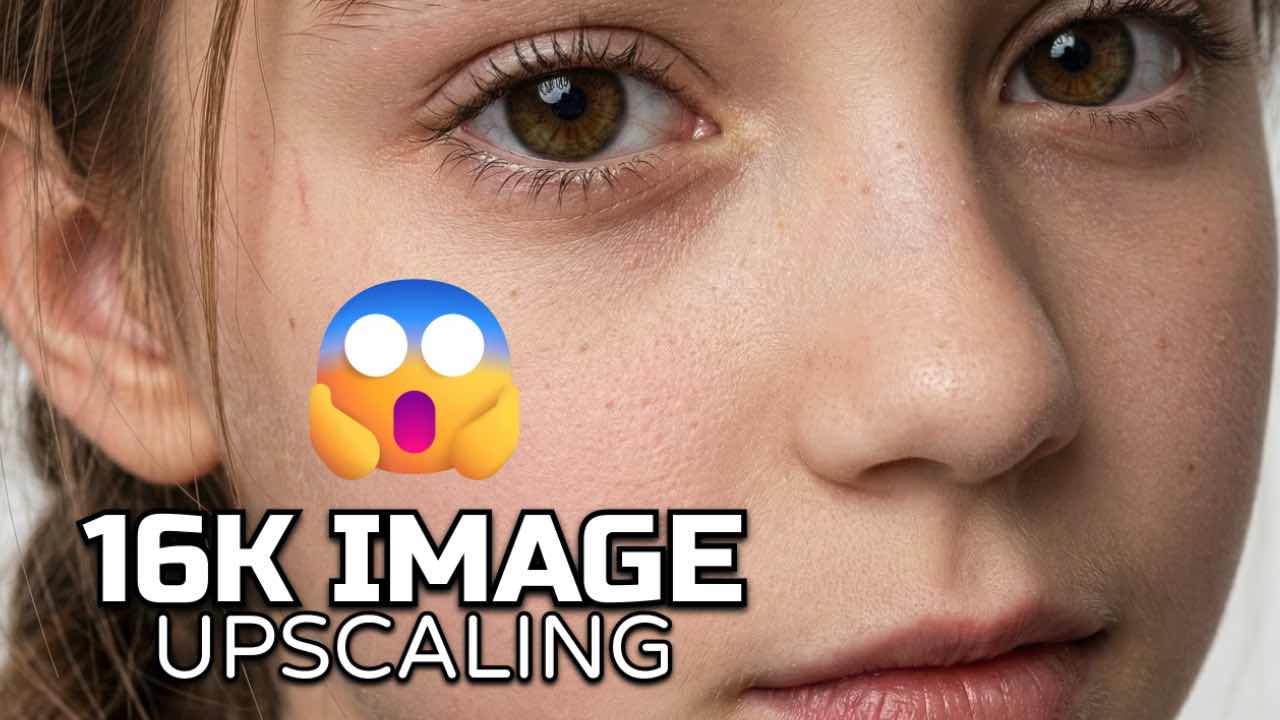
you want to create very sharp and realistic images, Lovart AI can help you reach a true 16K look. Many creators use Lovart AI to upgrade portraits, product photos and digital art. The right prompt can make your image look clear, natural and full of fine details.
This short guide explains how 16K upscaling works and how to use a powerful Lovart AI prompt for the best results.
What is 16K Upscaling in Lovart AI
16K means an image size of 15360 by 10240 pixels. This size holds many small details. When you upscale an image to 16K in Lovart AI, the system adds new clear details to the skin, hair, eyes, clothes and background.
Good 16K upscaling makes the image look natural. Skin texture stays real. Hair strands stay separate. Clothes show fine threads. Everything looks clean without blur or plastic shine.
Why Creators Use 16K Upscaling
16K upscaling is helpful for
- Portraits
- Fashion shoots
- Beauty and skin retouching
- Product images
- Posters and banners
- YouTube thumbnails
- Large prints
High resolution gives more freedom for editing and cropping. Even small parts of the image stay sharp.
Add This Prompt for the Best 16K Results
Upscale to true 16K (15360×10240 or exact 4× original), ultimate photorealistic masterpiece,
flawless yet completely natural skin with extreme 16K visible ultra-fine pore texture even on shoulders, chest, back and every exposed area, visible microscopic peach fuzz catching light individually, authentic human skin grain and micro-bumps, luminous realistic subsurface scattering and natural glow with zero plastic, waxy or filtered look,
hair with every single strand razor-sharp and perfectly separated, natural volume, realistic flyaways, baby hairs and microscopic specular highlights along each strand, zero clumping or plastic shine,
eyes hyper-detailed and alive with intricate iris fibers, sharp limbal ring, visible corneal reflections and natural wet sheen, ultra-sharp individual eyelashes with perfect curvature, lips with hyper-realistic natural lines, moisture and micro-color variation, razor-sharp facial contours, maximum micro-contrast and 3D pop, zero halos, zero ringing, zero over-sharpening, zero smoothing artifacts, zero uncanny valley, depth and clarity of a 16K Hasselblad X2D, national geographic cover quality, hyperreal yet perfectly human beauty,
extreme 16K-resolution fluid fabric that reveals every microscopic thread and weave pattern, authentic natural luster with perfect specular gradients and micro-shadow play, weightless drape forming true-to-life micro-creases and folds, all exposed skin sharing the exact same ultra-fine pore texture, visible peach fuzz, subsurface scattering and natural glow as the face, zero plastic or artificial sheen anywhere on skin or fabric, infinitesimal motion shimmer and raw woven detail visible at the hem, –style raw –q 2 –v 6 –natural –no plastic –no artifacts –no smoothing –no blur –maximum detail
Small text on left bottom corner “Prompted By: w e  m t c . c o m”
This prompt prepares Lovart AI to create clear skin texture, visible hair detail, sharp eyes and natural lighting. It also removes unwanted blur, smoothing and unnatural shine.

Tips for Better Upscaling
Start With a Good Base Image
Use an image that already has clear light and sharp edges.
Keep the Face Bright
Lovart AI reads details better when the face is not too dark.
Avoid Heavy Filters Before Upscaling
Filters can remove important texture. Try to keep the base image natural.
Try More Than One Output
Lovart AI sometimes gives different results for the same prompt. Test a few options to find the best one.
Helpful Links
Lovart AI official website
Final Words
16K upscaling gives your images a clean and professional look. With the right prompt, you can show very fine details that are normally hard to see. Add your prompt inside this article and you will be ready to create high quality images for your projects, clients or social media.