
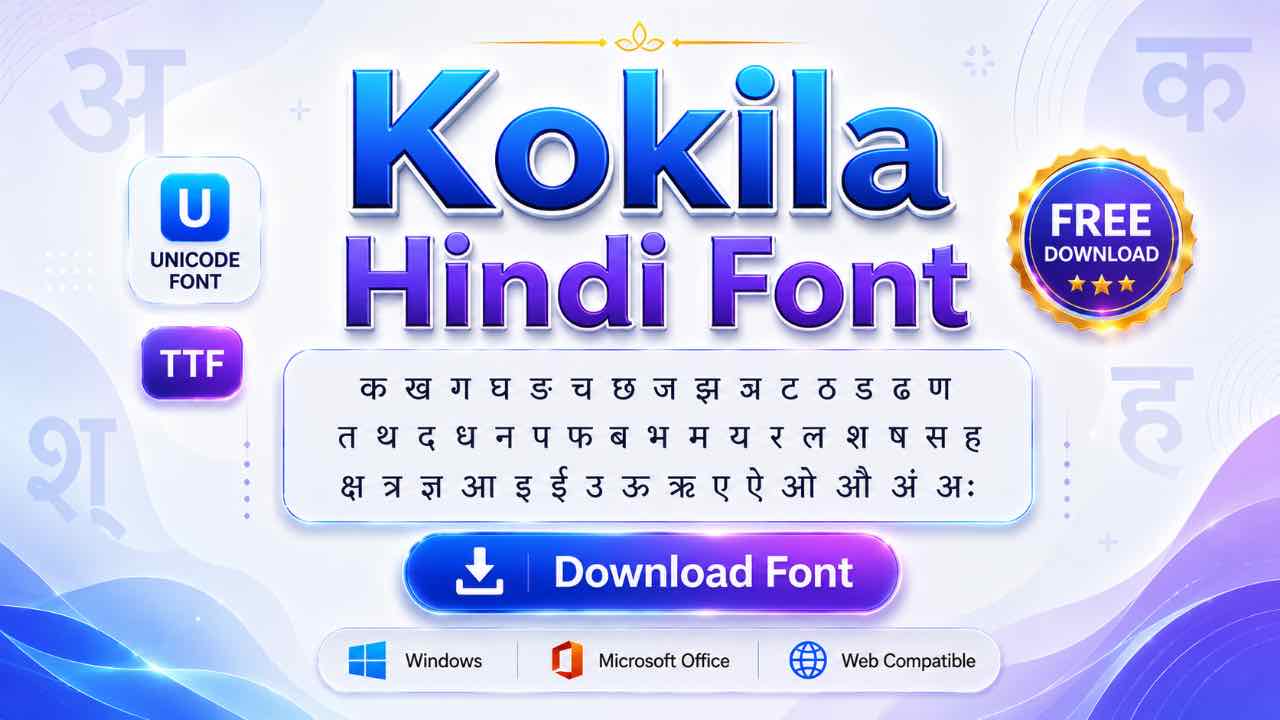
What Is the Kokila Font?
Kokila is a Unicode Devanagari font built by Modular Infotech, a Pune-based type foundry, and licensed to Microsoft for use across Windows and Office. Like Aparajita, it’s designed for displaying Hindi text in documents rather than short UI labels. It comes in four styles: Regular, Bold, Italic, and Bold Italic. It works across Windows, Linux, Android, and most major office software.
Free Kokila Font Download
Kokila often ships with Windows already, but grabbing the file directly makes sense on Mac, Linux, or any system where it’s missing. The download is free, small in size, and installs the same way as any standard font.
- 20 Best Modern Devanagari Fonts: Free Download Collection for Designers
- Download All Devanagari Fonts: Free Collection ZIP Pack
- Kokila Font Download: Free Guide for Hindi Documents
- Aparajita Font Download: Free Guide for Hindi Documents
- Mangal Font Download: Free Guide for Unicode Hindi Typing
- Krishna Font Download: Free Guide for Hindi Typing
- Shivaji Font Download: Free Guide for Marathi Typing
- Shusha Font Download: Free Guide for Phonetic Typing
- Chanakya Font Download: Free Guide for DTP & Typing
- DevLys 010 Font Download: Free Guide for Typing Tests
How Kokila Compares to Mangal and Aparajita
All three fonts are Unicode and come from Microsoft’s Devanagari collection, so they all display the exact same underlying Hindi text. The differences are mostly about look and origin rather than function.
Mangal leans toward UI and typing-test use. Aparajita and Kokila both target documents and formal writing. Kokila’s letterforms come from a different type designer, though, which gives it its own distinct visual personality. If Aparajita doesn’t quite match the look you want for a project, Kokila is worth trying before reaching for a font outside the Devanagari Unicode family entirely.
Installing Kokila on Windows, Mac, or Linux
- Download the font file and extract it if it’s zipped.
- Right-click the TTF file and select Install on Windows.
- Double-click and confirm in Font Book on Mac.
- On Linux, copy the file into your local fonts folder.
Check your font list first. Kokila is often already sitting on Windows systems from Windows 7 onward.
Typing in Kokila with a Unicode Keyboard
Installing Kokila doesn’t teach your keyboard to type Hindi any more than Mangal or Aparajita do. You still need a Devanagari input method active, such as Inscript or Remington Gail, before anything you type turns into Hindi text.

This is the single most common complaint around Kokila: people install it, try typing, and get plain English letters instead. The font isn’t broken. It just needs a Hindi keyboard layout switched on first.

Switching Between Kokila and Other Unicode Fonts
Here’s the upside of sticking with Unicode: once your text is typed, switching its look between Kokila, Mangal, and Aparajita takes one click. Select your text, change the font name in the dropdown, and the letters redraw instantly in the new style. No converter, no retyping, no lost formatting.
Using Kokila in Mobile and Design Apps
Since Kokila is Unicode, phones and apps display Hindi text correctly by default without needing the font imported. This holds as long as you’re typing through a Hindi keyboard. Kinemaster, CapCut, and PixelLab all handle this out of the box.
Import the Kokila TTF directly only if you specifically want its letterforms in your design. It’s the same way you’d add any custom font to these apps.
Frequently Asked Questions
Is Kokila Font Free to Download?
Yes, it’s free for personal and professional use, with no license fee required.
Why Does Kokila Show English Instead of Hindi?
The font is installed correctly, but your keyboard isn’t set to a Hindi input method yet. Turn on Inscript or a similar Unicode keyboard, and typing will produce Hindi characters.
Which Should I Use: Kokila, Mangal, or Aparajita?
It depends on the job. Mangal suits UI and typing tests, while Aparajita and Kokila both suit documents, so pick whichever letterform style looks better for your project.
Can I Switch My Document from Mangal to Kokila?
Yes, instantly. Select the text and change the font name to Kokila. Since both are Unicode, the underlying text doesn’t need any conversion.
Final Thoughts on the Kokila Font
Kokila won’t change how your Hindi typing works, but it will change how it looks. Download it if it isn’t already on your system, and pair it with a Unicode keyboard for typing. Swap it in wherever Mangal or Aparajita doesn’t quite match the style you’re after.